Calendar Layout Effects on the Nodes Within
If you are considering migrating your existing dated items (whether in a timeline format or standalone) into the new Calendar using Calendar Layout update, there are a few things to keep in mind. This is true on Web Prod as of October 28, 2025.
What happens when Calendar Layout is invoked (especially to “import” existing dated nodes or to import any new data):
-
if the imported date does NOT exist in the Calendar [see “Original Import” Before and After images]:
- new Day Node will be created
- the contents of the first encountered matched imported day node will be moved into the newly created Day Node
- subsequent matches will be moved as day nodes with their contents
• Day Node

  • Contents (of the first matched imported day node)

  • Old Date (subsequent match)

    • Contents (subsequent  match)

-
if the imported date already exists in the Calendar [see “Subsequent Import” Before and After images]:
- the imported day node with its contents will be moved into the existing Calendar Day Node
• Day Node

  • Old Date

    • Contents
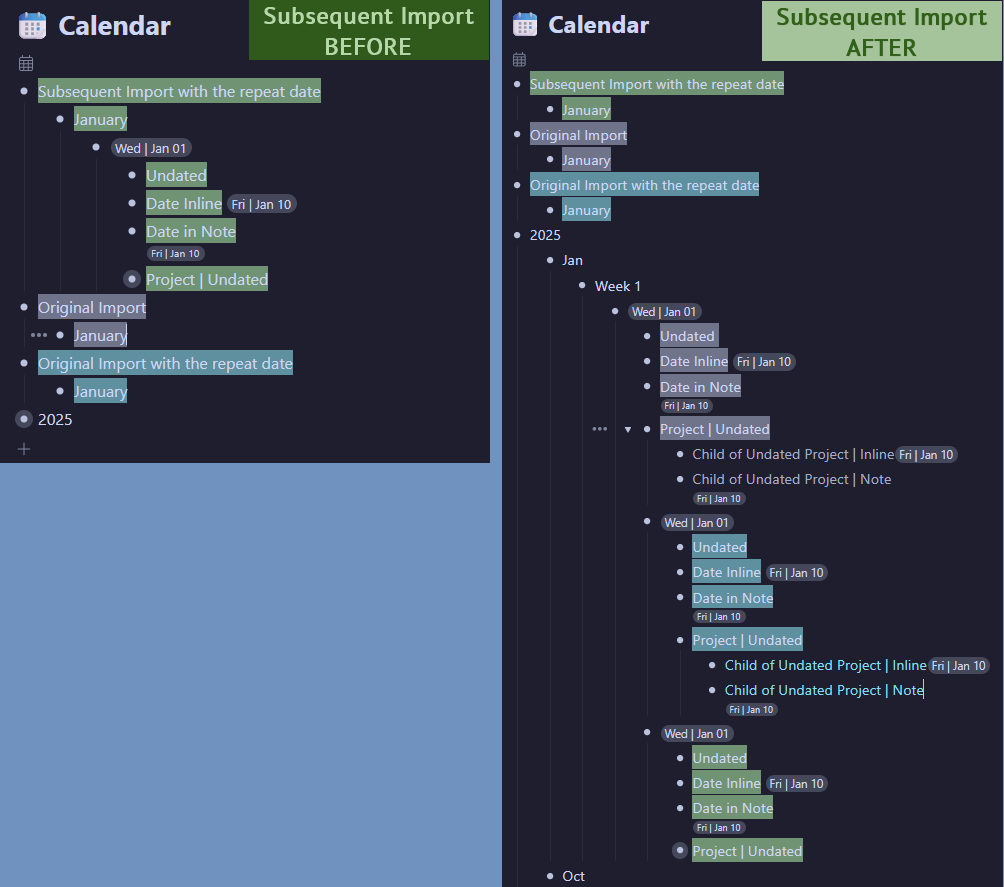
-
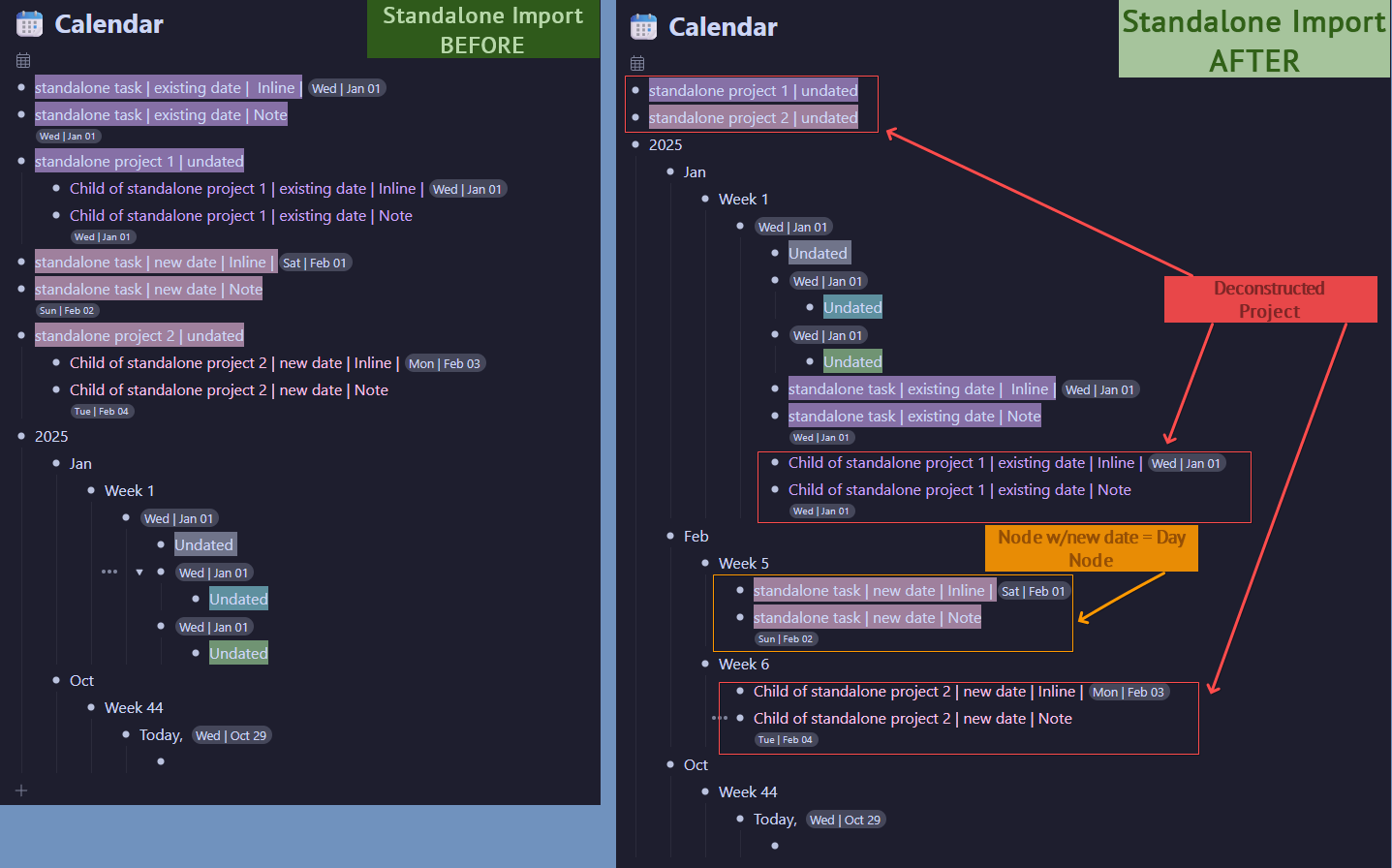
importing standalone nodes, i.e. the ones that are NOT descendants of a dated node (example: importing a Project with dated tasks and some other info) [see “Standalone Import” Before and After images]
- if the node is top-level, it will be moved to that Calendar date:
- if Day Node exists already — inside it
- caution: or become a new Day Node
- if the node is a descendant of another dated node, it will remain with its ancestor (depicted in “Original Import” and “Subsequent Import” images)
- warning: if your dated node is a descendant of an undated node, it will get separated during the move from its ancestor
- if the node is top-level, it will be moved to that Calendar date:
Some other observations:
-
the imported day node’s text/format will NOT change when matched into the new Calendar
- if you have some additional info in your existing day nodes — it will remain untouched
- in the “Standalone Import” After image you can see how a standalone task with new date becomes a Day Node after conversion, hence the caution above
-
if you have undated items directly under Year, Month, Week nodes, they will remain untouched
- caveat: if the week spans two months, the undated node directly inside the Week will end up in the earlier month’s Week
-
if you decide to “import” projects with multiple descendants using Calendar Layout make sure the top-level node of each project is dated to prevent separation
-
you can use existing tools (like WF Calendar Generator ) to create years worth of dates in advance, move them into Calendar, and then run Calendar Layout to incorporate them properly
- this can come in handy if you want to link to your Calendar Day Nodes instead of just moving to them via
/Move to Datecommand
- this can come in handy if you want to link to your Calendar Day Nodes instead of just moving to them via
-
for the extra cautious, you can duplicate your existing timeline prior to converting to the new Calendar, and archive the duplicate but convert the Original
- this will keep all your metadata intact: date created, last modified, etc.
- Calendar Layout will not modify or remove any of your nodes — only sort them into the new Calendar structure
Using Calendar Layout to import data is not an official import tool, but rather a one-time approach to transfer your existing timeline into the new Calendar system.