The Time Bureau, the Ministry of Time, the Time Police, the Temporal Enforcement Division, the Time Agency, and Time Patrol have all unanimously given WorkFlowy the green lights to build our very own time machine.
Whether you’re into journaling, if you keep a tickler file in WorkFlowy… or simply prefer to create, categorize and reference notes according to date, we now have a dedicated space where you can create new dates on demand, and offload your thoughts, plans, reminders — and everything else you’d like to throw at WorkFlowy.
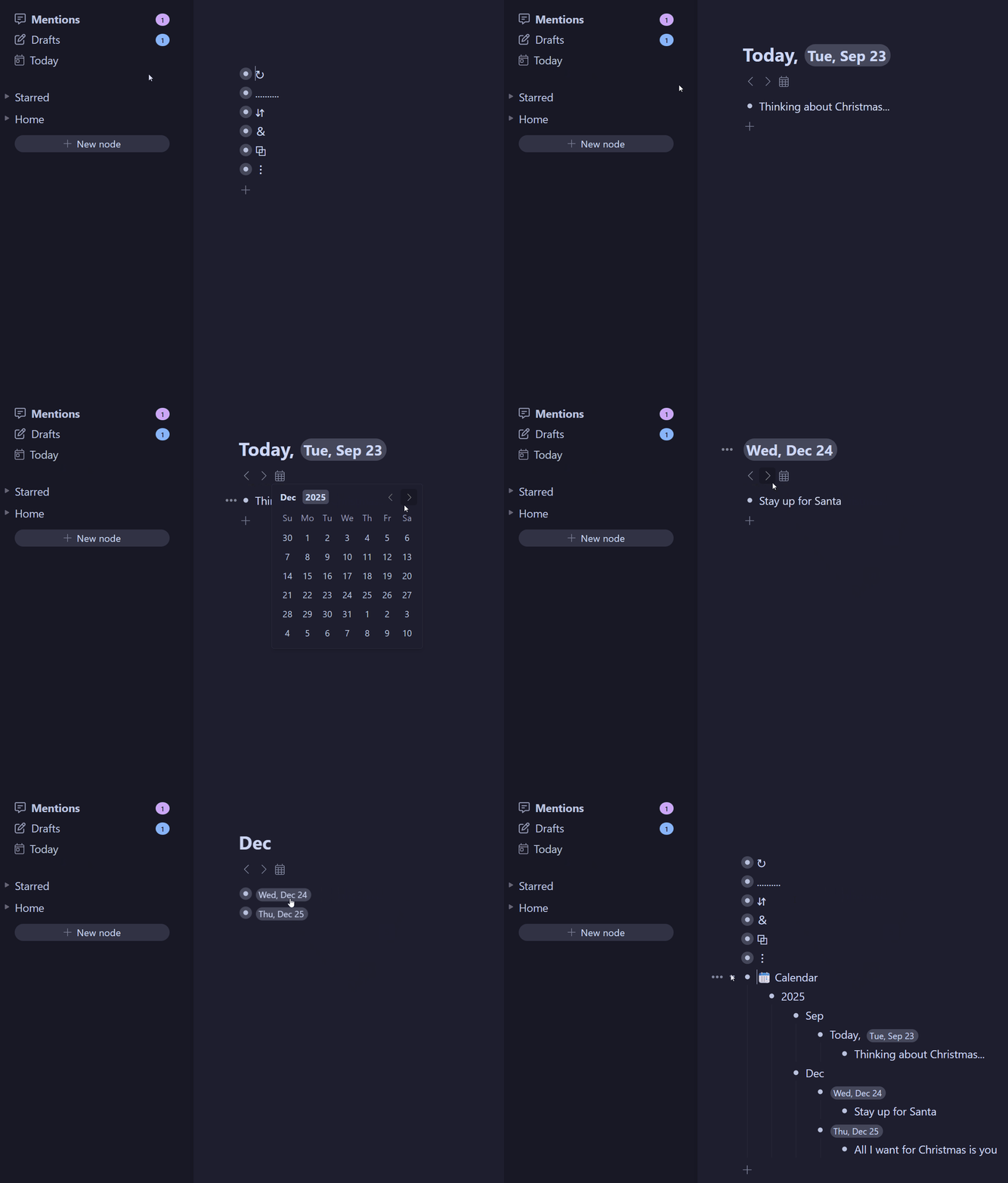
On desktop, press Today in the header or sidebar, or use Alt+T(Windows)/ Ctrl+T (Mac). On mobile, tap Today in the navigation bar. This creates a Calendar hierarchy of Year → Month → Day nodes.
Use the Next, Previous, and Calendar Picker buttons to jump between dates. New nodes are created automatically as needed.
To customize the Calendar node, open the Calendar Picker, select Calendar Layout , and choose any combination of Year, Month or Week for your desired hierarchy. You can also select Friendly day names to visually clue you in when you’re looking at yesterday, today or tomorrow’s nodes.
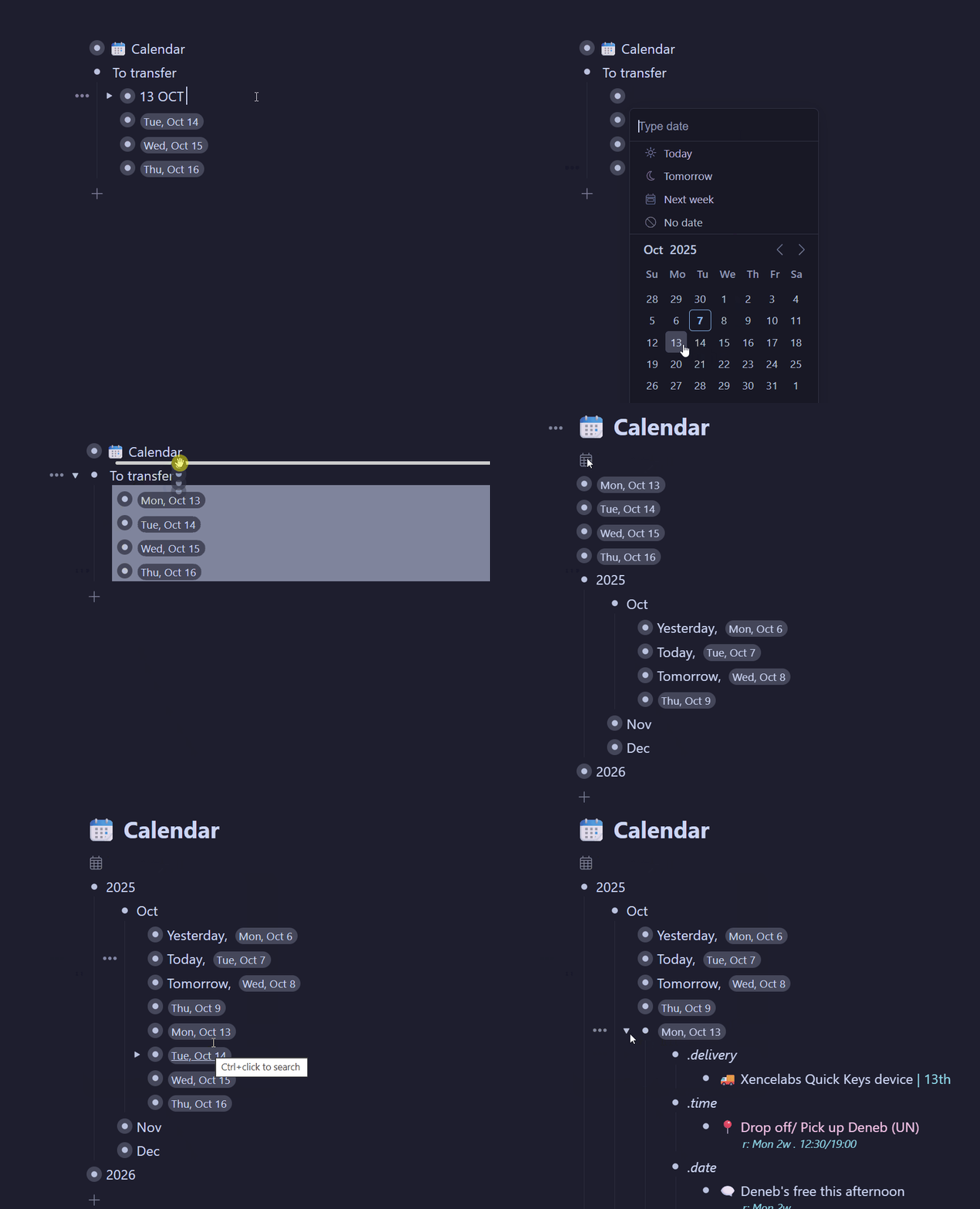
You can move your own-rolled calendar, journal or any nodes with Date tags into the new Calendar. To do this, drag any node with a Date tag (type !! to add one) under the Calendar node. Then, open Calendar Layout from the Calendar Picker, and press Update to reorganize.
Calendar migration
Finally, you can move any node to the current day with the /Move to Today and Mirror to Today commands (or their multi‑select menu options).
Lots of mobile TLC
Multi-Select is now available to everyone (previously Labs only)
We’ve added Export to the mobile multi-select bar
Long pressing a selected node now initiates drag‑and‑drop for one or more nodes
Templates, date nodes and images are now easier to select
We’ve fixed finicky page scrolling when items are dropped into a collapsed bullet
Mobile multi-select now stays open after using the /MoveTo command
Changing the layout type no longer deselects items when pressed
We’ve fixed the drag handle in todos with long names
More quality-of-life items
Workflowy now imports tags from Readwise
The create a node API endpoint now graciously accepts markdown
Fringe fixes (if you know, you know)
The last column of a board no longer disappears when the span of all columns is a tad wider than the screen.
You can now find 2025 in a jump-to search, even if your date format in Settings doesn’t display the current year.
You can now Ctrl/Cmd+Click on dates with a custom format and find all related dates.
I’ve been doing that manually for 5 years. A single input but then I needed to organize it like the new calendar. In my journal I add at beginning of each bullet a rounded time tag like #t1300. From an Apple shortcut is added automatically. Would be nice in the calendar picker the option to pick just the time and in settings the option to customize the format like date. Thanks!!!
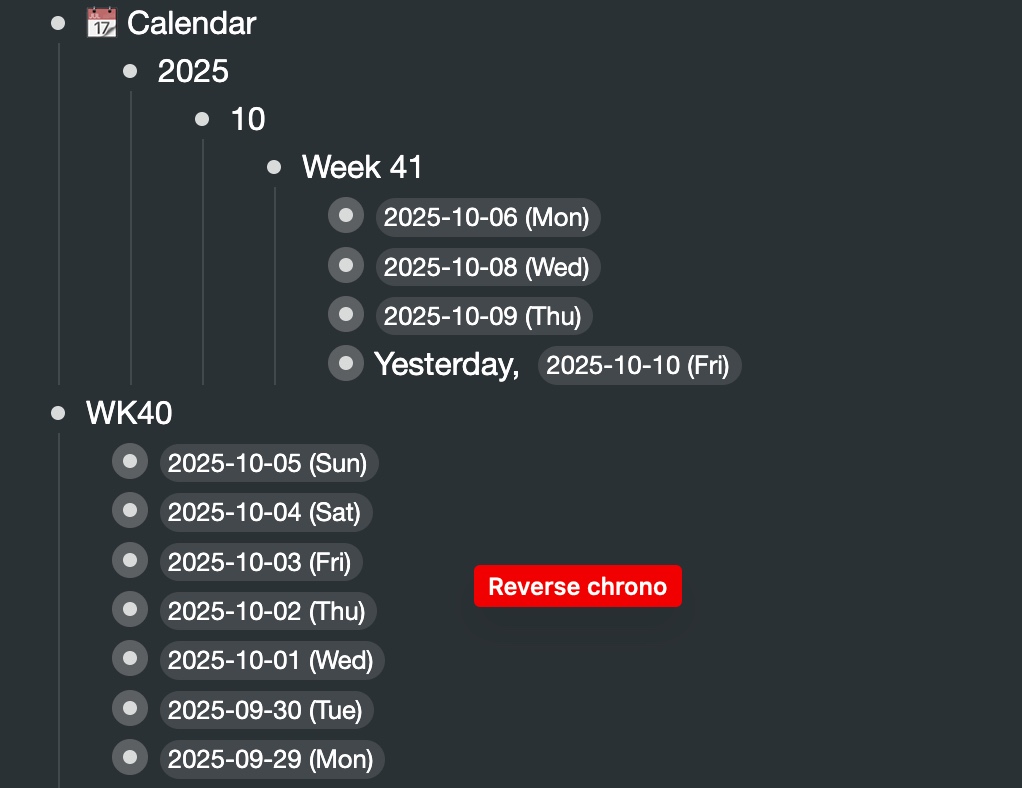
Is there anyway to put the new calendar order in reverse chronological order? When I search, I prefer the newest bullets to show at the top as I scroll through for information. I tried putting my most recent week of daily bullets in the calendar, and it reordered them with the oldest on top, and newest on the bottom.
Thanks for the new calendar system! It looks great and I’m excited to move my manual calendar over to it. Love the auto-update.
Is there any way to have it auto-collect/update items by month or year? I’m thinking of things that are not attached to a specific date within that month or year.
Any chance auto-repeating nodes within the calendar are coming in a future update?
The Calendar feature is just awesome. For years I have been trying to simulate this in Workflowy but now, one click and I can start typing notes for today. Excellent and brilliantly executed.
Really excited to see how I can apply this. Been using a digital tickler file for a long time now. Wondering if there are plans in the future for repeat events like daily tasks (or maybe my ludite self missed something). I use workflowy in my homeschool (and it’s been a game changer - thank you!) where there are a number of daily tasks.
But this is when you already have item on the calendar. There is no move to date on other sections. I have a lot of items with dates in different places and those don’t show on calendar at all.
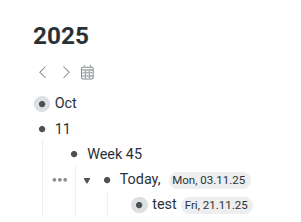
Plus if you don’t use move to date and just update the date you end up with nonsense like this:
Just wondering: will WF’s new feature “Found Dates” help with this issue? @akrawet
Since I don’t use dates very often, I’ve not had a chance to test this yet . . . .
FYI, you’ll have to update to access this new feature.